


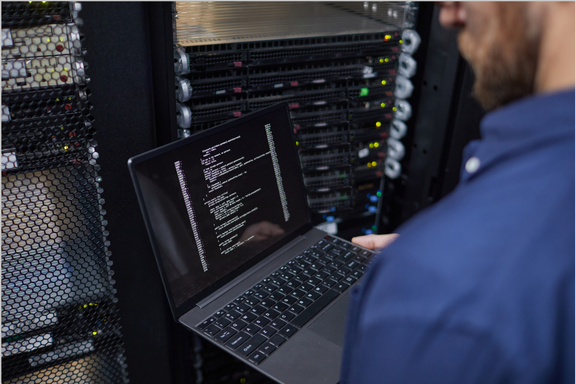
Most home network advice is running about a decade behind. Use eight characters with a symbol in the middle. Change it every six weeks. Install antivirus and you’re covered.
None of that covers current risks. The National Institute of Standards and Technology (NIST) now tells organizations not to force periodic password changes at all and to drop the special-character rules that pushed everyone toward “P@ssw0rd1.” Attackers spend far less effort on your laptop than on the router in the hallway and the always-on box in the closet — the machines nobody patches or watches.
If you run a home server, a network-attached storage (NAS) unit, or a full homelab, you’ve concentrated years of household records in one place and left it powered on around the clock. This page covers what those machines are, why they change your exposure, and the specific steps that close the common gaps.
Even if you don’t have a server in the house, the following router and password sections apply to every household, and the Cybersecurity and Infrastructure Security Agency (CISA) covers the fundamentals in plain language through its Secure Our World program.
What Is a Home Server?
A home server is any computer on your network built to serve your other devices instead of being one you sit in front of. It might be a purpose-built NAS from QNAP or Synology, an old desktop with a fresh drive, or a small PC behind the TV.
Common jobs include a home network storage server holding the family’s photos and scanned paperwork, a media server for the living room, a backup target for every laptop, and home automation that keeps running after everyone’s asleep.
The common thread is that it’s always on and every device you own can reach it.
How a Homelab Differs
The terms overlap. The useful distinction is in their purpose:
- A home server does a job. You set it up, it works, and you stop thinking about it.
- A homelab is a learning environment. It exists so you can run a hypervisor (the software that hosts virtual machines), break a Kubernetes cluster, stand up a reverse proxy, or test what you’d never risk on equipment you rely on. Breaking things is often half the point.
Plenty of setups are both — a stable NAS for the household files, plus a second machine for experiments. Make that split deliberately, because the two need different security postures. The lab can be rebuilt on a bad Saturday, and a file server holding a decade of tax records can’t be.
Why Always-On Changes Your Risk
A laptop sleeps most of the day, moves between networks, and gets patched because you notice the reboot prompt. A home server has none of those accidental protections. It has a fixed address, it’s awake at 3 a.m., and if it quietly stops updating you may not notice for two years.
Three things compound the problem:
- It’s a consolidation point. Consolidation is the reason to build one, and it means a single compromise reaches everything at once.
- People expose it on purpose. The whole appeal is reaching your files from a hotel. The usual shortcut — forwarding a port on the router — puts a service on the public internet, where automated scanners find it within hours. QNAP’s standing guidance tells owners to get their NAS units off the open internet, not the sort of advice a hardware vendor gives lightly.
- Nobody monitors it. A compromised home server is a quiet neighbor: it keeps serving files while it relays somebody else’s traffic.
That last point isn’t hypothetical. An April 2026 joint advisory from CISA, the FBI, the National Security Agency, and allied cyber agencies across Europe and the Pacific described covert networks of compromised small office and home office routers, cameras, video recorders, and NAS units, used to disguise the origin of espionage traffic. One network it describes grew past 200,000 devices. What tied them together was end-of-life hardware the manufacturer had stopped patching. Nobody picks your router because your household is interesting. They pick it because it’s exposed and no one’s looking.
Securing the equipment is separate from deciding what’s worth securing. Working out which personal information carries the most risk and why is relevant as well. Here we are focused on the hardware and the wire.
Start With the Router
The router is the highest-leverage device on your network, and it’s usually the one still running factory settings from the day it was installed. The Federal Trade Commission’s guidance on securing home Wi-Fi is short, and it’s worth following exactly:
- Change the default admin username and password. Not the Wi-Fi password — the separate one that gets you into the router’s settings.
- Set encryption to Wi-Fi Protected Access 3 (WPA3), or WPA2 if the hardware won’t support it. Anything older than WPA2 is broken.
- Update the firmware, and keep checking on a schedule. Register it with the manufacturer so update notices reach you.
- Turn off remote management, Wi-Fi Protected Setup (WPS), and Universal Plug and Play (UPnP). UPnP lets any device on your network quietly open a hole in your firewall.
- Enable the built-in firewall, and log out of the admin interface when you’re done.
- Stand up a guest network with its own name and password. Visitors and smart gadgets get internet access without touching the network your own devices share.
Then check whether your router still receives security updates. If the manufacturer has moved on, no configuration can compensate. New hardware is the only real remedy.
The Password Rules Changed
When it comes to password best practices, length carries more weight now. NIST’s current guidance sets a 15-character minimum where a password is doing the work alone, allowing eight characters where multifactor authentication (MFA) backs it up. It also tells verifiers to accept at least 64 characters, and bars them from requiring mixtures of character types. A four-word passphrase beats a mangled eight-character string on both strength and the odds you’ll remember it.
Forced rotation is out. Calendar-driven changes push people toward predictable increments, so the guidance now says to change a password only when there’s evidence it’s been exposed.
Screening is what replaces it. Verifiers now check new passwords against lists of commonly used and previously breached strings, and you can do the same at home — most password managers will flag saved credentials that have turned up in a breach. That list is your real rotation schedule.
Two habits do more than everything above combined:
- Use a password manager. It invents and remembers a strong, unique password for every account, leaving you exactly one to memorize.
- Then turn on MFA (the second sign-in step, usually a code or prompt on your phone) everywhere it’s offered, starting with email — the account that can reset all the others.
Keep It Off the Open Internet
If you take one instruction from this page, take this one: don’t forward ports to your home server.
Port forwarding (telling your router to pass outside traffic straight to a machine inside) is the path of least resistance for remote access, and it hands whatever is listening on that port to the entire internet. Scanners sweep the IPv4 address space continuously, every standard internet address there is, so an obscure port number buys you nothing. IPv6 can’t be swept that way, but addresses still leak through Domain Name System (DNS) records, certificate transparency logs, and ordinary outbound requests, so it isn’t hiding either.
The alternatives are better and mostly free:
- Run a virtual private network (VPN) back to your own network. Many routers include a VPN server, and WireGuard is straightforward to set up on the server itself. You connect to your network first, then reach services as though you were home.
- Use an overlay network. Mesh tools built on WireGuard get your devices talking without opening a port, falling back to relays when the network won’t cooperate. The tradeoff is a third-party coordination service holding keys and membership, which is worth understanding before you adopt one.
- If something genuinely has to be public, put it behind a reverse proxy — a single hardened gateway that fields every outside request and terminates Transport Layer Security (TLS) encryption — then add a forward-auth layer so MFA is required before a request ever reaches the application itself.
Once you’ve handled that, you should then disable UPnP on the router so nothing reopens the door you just closed.
Segment, Patch, and Monitor
Segment Connected Devices
Smart plugs, cameras, TVs, and doorbells run firmware you don’t control and can’t audit. Put them on the guest network or their own virtual local area network (VLAN) — then write the firewall rule that actually blocks traffic from that segment to your server. A VLAN separates traffic only on paper; most routers will happily route between VLANs until you tell them otherwise.
Patch On a Schedule
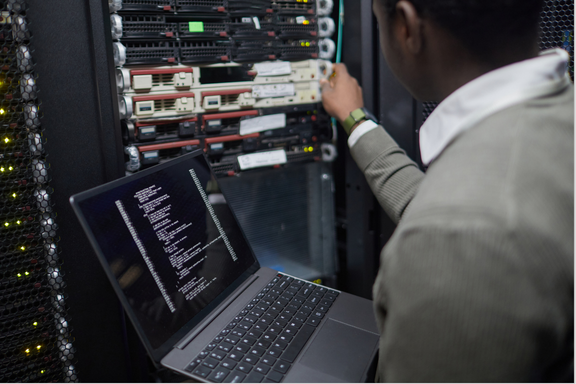
Enable automatic updates where the platform offers them, and put a recurring calendar reminder on everything else — router, NAS, hypervisor, containers. Once a month is enough for most households. While you’re in there, retire anything the vendor no longer supports, since unpatched gear is the exact profile the joint advisory describes.
Monitor at a Sustainable Level
Home network monitoring doesn’t require a security operations center. It means knowing what should be connected and noticing when something new shows up.
Pull the device list off your router quarterly, switch on new-device alerts if offered, and glance at your NAS access logs after any trip onto unfamiliar Wi-Fi. A lightweight monitoring container goes further, telling you when a service drops or a disk starts throwing errors, which is also how you catch a failing drive before it takes your documents with it.
Encryption belongs in the same conversation. Full-disk encryption on the server, plus encryption on the file categories that warrant it, means a stolen drive costs you the hardware and nothing else.
RAID Is Not a Backup
Most people running an array probably already know this, but let’s dig in for those who don’t.
A redundant array of independent disks (RAID) protects against hardware failure — a drive dying, or, on a filesystem that verifies its own data such as ZFS or btrfs, silent corruption caught on a scrub. What it doesn’t protect for is the file you deleted last Tuesday, the ransomware that encrypted the share, the power supply that took three disks with it, or the house fire. RAID keeps a service running. Keeping your records is a separate job.
The convention that actually works is 3-2-1: three copies of anything you care about, on two different kinds of media, with one of them offsite. Your NAS is copy one and an external drive is copy two, which is where most households stop. The offsite copy is the one that survives a fire, a flood, or an intruder who encrypts everything reachable on the network.
Two additions for this threat model. Make the offsite copy versioned or immutable, so ransomware that reaches your server can’t overwrite the backup too. And test a restore — a backup strategy you’ve never restored from is a hypothesis, not a backup. Pick a random file once a quarter and pull it back. The quarter you discover the job has been silently failing is the quarter that habit pays for itself.
If ransomware still feels remote, encryption and backup discipline are the two controls that decide whether an incident is an afternoon of annoyance or a permanent loss.
When Self-Hosting Stops Making Sense
Running a home server is the right call for most of what people build one for. It’s cheaper at scale, keeps your files under your own roof, and the learning has value on its own.
Two situations change the calculation:
- The irreplaceable material. Original deeds, estate documents, birth certificates, and decades of tax records don’t belong on a single box with one copy. Once you’ve digitized what should be digitized, the scans need somewhere durable, and the paper still needs a decision, because some documents stay physical no matter what you’ve scanned.
- Other people’s data. This is the harder line, and it has less to do with your setup’s capability than you’d expect — plenty of home labs run better logging than the average small office.
The problem is everything around the technology: who signs the breach notification, who patches while you’re on vacation, and what a regulator will accept as proof a retention policy was enforced. If client information passes through your equipment — a solo law practice, a bookkeeping or financial services operation, a contractor holding customer records — data protection laws reach operators that small, and the question stops being technical. Small business document management is usually where a managed system starts earning its cost.
Record Nations Can Help
Record Nations connects you with local scanning and storage companies, and for a home server owner the useful piece is almost always the copy that lives somewhere other than your house.
Providers in our network offer cloud document storage with encryption, password protection, and MFA, covering the offsite leg of 3-2-1 without a second NAS in a relative’s basement. Ask about versioning and retention while you’re comparing — that’ll determine whether the offsite copy survives ransomware.
Getting there tends to surface the paper problem you’ve been ignoring. Professional scanning clears a garage of boxes faster and with better indexing than a desktop scanner and a long weekend, and a provider can route what’s left in two directions at once — originals worth keeping into offsite records storage, everything else into secure destruction. If you’ve simply outgrown the self-hosted stack, a document management system brings version control and access permissions you don’t have to maintain yourself.
An offsite copy only helps if a provider is within reach, which is what a national network is for. Ours covers secondary metros as thoroughly as the big ones, so document scanning in Fort Collins, records storage in Des Moines, and shredding in Dayton are as straightforward to arrange as anything on a coast.
Start by telling us what you’re working with. Fill out our form or call us at (866) 385-3706, and we’ll help you scope the project and find competitive quotes from providers who fit it.